Getting Started with RingBot - Complete Setup Guide
Quick Start Summary: This guide walks you through setting up your first RingBot AI agent in 5 simple steps, taking approximately 5 minutes total. Steps include: (1) Create account with email or Google OAuth (30 seconds), (2) Configure your AI agent with personality, voice, and knowledge base (2-4 minutes), (3) Test your agent via provided links (1 minute), (4) Optionally purchase and bind a phone number (2 minutes), (5) Go live immediately after saving.
Key Features Covered: Account creation, agent personality configuration, knowledge base upload (PDF/Word/text), voice selection, phone number purchase and binding, testing procedures, embedding on websites, and accessing analytics.
Prerequisites: Email address, company information (optional), knowledge base documents (optional but recommended), payment method for phone number purchase (optional).
Next Steps After Setup: Explore advanced features including custom workflows, analytics & reporting, team management, CRM integration, calendar integration, and advanced skills/tools.
Get Started with RingBot
From sign-up to your first AI-powered call in just 5 simple steps
Quick Overview
Welcome to RingBot! This guide will walk you through:
💡 Pro Tip: Prepare your knowledge base beforehand (product details, FAQs, policies in PDF or Word format) for faster setup.
Create Your Account
What You'll Need
- Email address
- Password (or use Google OAuth for instant sign-up)
- Company information (optional but recommended)
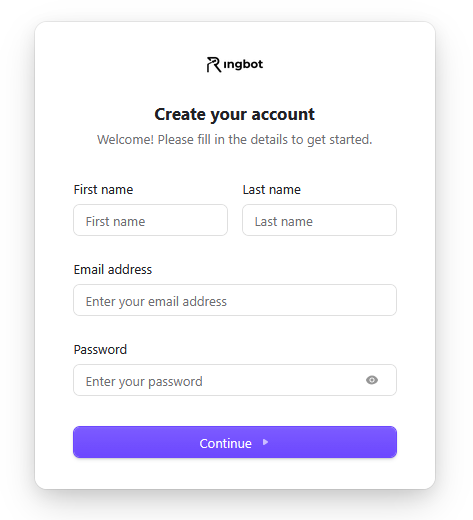
Sign-Up Process
Free Plan Included
Start with our free plan - no credit card required! You can upgrade to Pro or Enterprise plans anytime as your needs grow.
Set Up Your First Agent
What is an Agent?
An agent is your AI assistant that handles calls and chats. Think of it as a virtual team member that can:
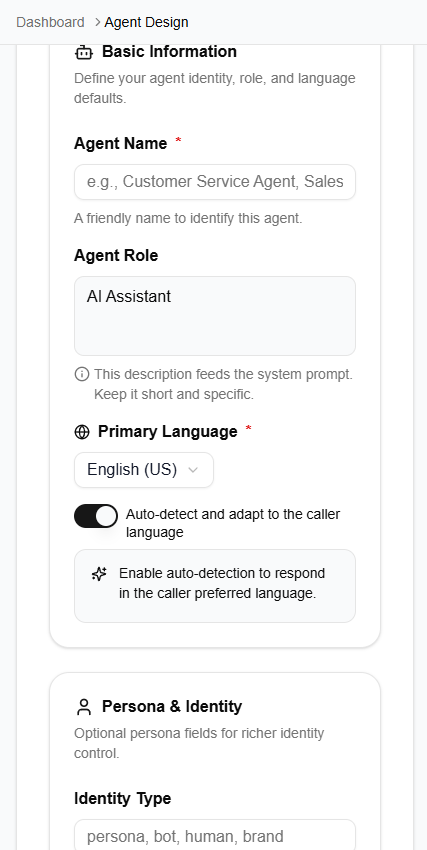
Creating Your Agent
Voice Settings
- • 6 different voices available
- • More voices coming soon
- • Voice preview feature in development
- • Speed/pitch adjustment coming soon
Knowledge Base
- • Upload PDF documents ✓
- • Upload Word documents ✓
- • Paste text directly ✓
- • Text files supported ✓
Make Your First Test Call
Testing Your Agent
After saving your agent, you can immediately test it:
What to Test
Get a Phone Number (Optional)
Why Get a Phone Number?
A phone number allows customers to call your AI agent directly. You can:
- Get a new number from RingBot
- Choose from local, toll-free, or mobile numbers
- Select your lucky number
- Use multiple numbers for different agents
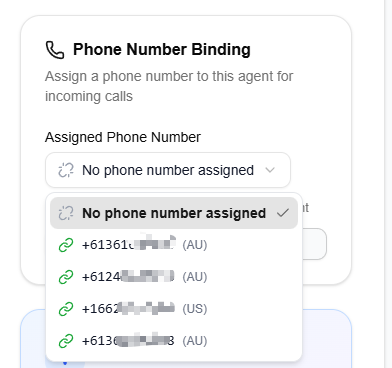
Getting a New Number
Pricing
- • Varies by country and number type
- • Monthly subscription model
- • No setup fees
- • Cancel anytime
Number Assignment
- • One number per agent (1:1 relation)
- • One agent per number (1:1 relation)
- • One-click binding in agent config
- • Test by dialing after save
Note: Number porting is not currently supported. Business profile may be required for certain countries.
Go Live
Final Checklist
Your Agent is Live!
Good news! Your agent goes live immediately after you save it. There's no separate activation step needed.
Embed on Your Website
Add your AI agent to any website with a simple embed code:
- 1. Go to your agent configuration page
- 2. Find the 'Share & Test' section
- 3. Copy the embed code
- 4. Paste it into your website's HTML
- 5. Your agent is now live on your site!
Next Steps
Advanced Features to Explore
CRM Integration
Coming SoonConnect to Salesforce, HubSpot
Calendar Integration
Coming SoonAutomate appointment booking
Getting Help
Need assistance? We're here to help:
Ready to Get Started?
Create your AI agent in minutes and start transforming your customer communication today.